
How Computers Start: The Boot Process Explained
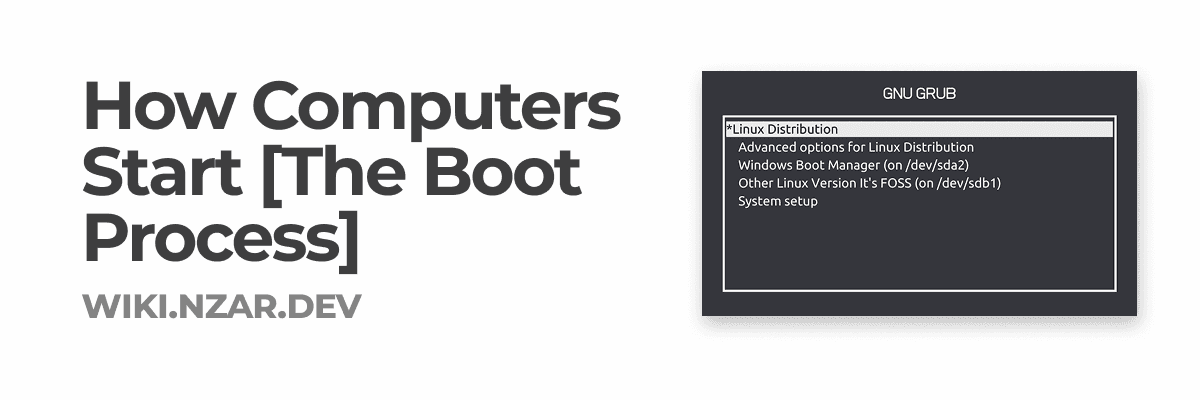
You press the power button. A few seconds later, you're staring at your desktop, ready to work.
But what just happened in those few seconds? It seems instant, but your computer just went through an incredibly complex sequence of events, a carefully coordinated interplay of hardware and software working together.
In this guide, we're going to break down the entire boot process from the moment you press that button to the moment you see your desktop. Every step, every component, every decision made along the way.
Let's follow the journey from power button to "Welcome."
Step 1: You Press the Power Button
It seems simple, right? Press button -> computer turns on. But that little button press triggers a chain reaction.
When you press the power button, you're actually closing an electrical circuit. This sends a signal to the power supply that says "Hey, start sending power to the motherboard!"
What Happens Immediately:
- The power supply starts converting AC power from your wall outlet into DC power
- It sends a Power Good signal to the motherboard (basically saying "Power is stable, you're good to go")
- The motherboard receives this signal and starts distributing power to all components
- A tiny voltage hits a specific pin on the CPU, which is its wake-up signal
All of this happens in milliseconds. Your computer is already waking up.
Milestone 1 Complete!
Power is flowing, components are energizing. But we need something to tell everything what to do...
Step 2: The Firmware Takes Control (BIOS/UEFI)
The very first software that runs on your computer isn't Windows, macOS, or Linux. It's something much more fundamental: firmware.
Firmware is software that's permanently stored on a chip on your motherboard. It's called either BIOS (Basic Input/Output System) or UEFI (Unified Extensible Firmware Interface), depending on how old your computer is.
BIOS vs UEFI: What's the Difference?
BIOS (the old way):
- Been around since the 1980s
- Text-based interface (looks retro)
- Limited to booting from drives smaller than 2.2TB
- 16-bit mode (slow)
- Simple but reliable
UEFI (the modern way):
- Introduced in the 2000s, now standard on most computers
- Can have graphical interfaces with mouse support
- Supports drives larger than 2.2TB
- 32-bit or 64-bit mode (much faster)
- More security features (like Secure Boot)
- More flexible and extensible
For simplicity, I'll call it firmware going forward, but know that most modern computers use UEFI.
Milestone 2 Complete!
Firmware has taken control. Now it needs to check if everything is working properly...
Step 3: POST - The Hardware Health Check
The firmware's first job is POST: Power-On Self-Test.
Think of POST as a doctor's checkup for your computer. The firmware goes through a checklist to make sure all the critical hardware is present and functioning.
The POST Checklist:
First things first - check the CPU:
- "Is the CPU responding?"
- "Are all the cores working?"
- ✅ Check!
Next, check the memory:
- "Is RAM installed?"
- "Is it working properly?"
- "Are there any errors?"
- ✅ Check!
Then, check other critical hardware:
- "Is the graphics card responding?"
- "Are the storage drives connected?"
- "Is the keyboard detected?"
- ✅ Check! ✅ Check! ✅ Check!
What You See During POST:
You'll usually see:
- The manufacturer's logo (Dell, HP, Lenovo, ASUS, etc.)
- Maybe a loading bar underneath
- On some computers, a memory count as it checks your RAM
- On older computers, maybe some text messages about what's being detected
You might also hear:
- One short beep = Everything is good!
- Multiple beeps or patterns = Something's wrong (different beep codes mean different errors)
If POST Fails:
If something is wrong, POST will stop and tell you. Examples:
- No RAM detected -> Computer beeps repeatedly and won't continue
- Graphics card issue -> No display output
- CPU problem -> Computer might not even beep or show anything
No POST, no boot. Everything needs to pass the health check.
Milestone 3 Complete!
Hardware check passed! All components are present and working. Now the firmware needs to find something to boot...
Step 4: Finding the Boot Device
Okay, hardware is good. But where is the operating system? The firmware needs to find it.
The Boot Device Search:
The firmware looks at a prioritized list (called the boot order) to find something bootable:
Typical boot order:
- USB devices (flash drives, external drives)
- DVD/CD drive
- Primary hard drive or SSD
- Network (PXE boot - for advanced scenarios)
The firmware checks each device in order until it finds one that's bootable.
What Makes a Device "Bootable"?
A bootable device has a special area that contains:
- A boot sector (the first sector of the drive)
- A bootloader (a tiny program that knows how to load the OS)
For BIOS/Legacy systems:
- It looks for something called the MBR (Master Boot Record) in the first 512 bytes of the drive
- If it finds a valid MBR, it says "Aha! This is bootable!"
For UEFI systems:
- It looks for a special partition called the EFI System Partition (ESP)
- Inside the ESP, it looks for bootloader files (usually in
/EFI/BOOT/or/EFI/Microsoft/or/EFI/ubuntu/) - These are actual
.efifiles that UEFI can execute
If the firmware doesn't find any bootable device, you'll see an error like:
- "No bootable device found"
- "Please insert boot disk"
- "Operating System Not Found"
And your computer just sits there waiting for you to fix it.
Milestone 4 Complete!
Boot device found! The firmware has located a drive with a bootloader. Time to hand over control...
Step 5: The Bootloader Takes Over
Alright, the firmware found a bootable device. Now it loads a tiny program called the bootloader into RAM and transfers control to it.
The bootloader's job is to load the actual operating system. It's like the intermediary between firmware and OS.
Why Do We Need a Bootloader?
Why can't the firmware just load the OS directly? Because:
- The OS is complicated and huge
- It might be spread across multiple locations on the drive
- It might need to be loaded in a specific way
- There might be multiple operating systems to choose from (dual-boot)
The bootloader knows how to find the OS files and load them properly.
Different Bootloaders for Different Systems:
Windows:
- Uses Windows Boot Manager (bootmgr)
- You see the Windows logo with the spinning dots
macOS:
- Uses boot.efi
- You see the Apple logo with a progress bar
Linux:
- Usually uses GRUB (Grand Unified Bootloader) or systemd-boot
- You might see a text menu if you have multiple Linux installations
- Or just a logo if you only have one
Dual-boot systems:
- You'll see a menu (usually GRUB) asking which OS you want to boot
- Example: "Ubuntu" or "Windows 10"
Milestone 5 Complete!
Bootloader is in control and ready to load the OS. This is where things get interesting...
Step 6: Loading the Kernel
The bootloader's main mission is to load the kernel, the core of the operating system.
What Is the Kernel?
The kernel is the heart of the operating system. It's the piece of software that:
- Manages hardware resources (CPU, RAM, devices)
- Handles communication between software and hardware
- Manages processes and memory
- Provides essential services to all other programs
Think of the kernel as the manager of your computer. Everything else (your programs, your files, your interface) depends on the kernel to actually interact with the hardware.
How the Bootloader Loads the Kernel:
Step 1: Locate the kernel file
- Windows: Looks for
ntoskrnl.exe(NT Operating System Kernel) - Linux: Looks for a file like
vmlinuz(compressed kernel image) - macOS: Looks for
kernelfile
Step 2: Load it into RAM
- The bootloader reads the kernel file from the storage drive
- Decompresses it if necessary
- Copies it into RAM (remember, RAM is way faster than storage)
Step 3: Load initial RAM disk (Linux/macOS)
- Also loads an initramfs or initrd (initial RAM file system)
- This is a temporary mini-filesystem that contains drivers needed to mount the real filesystem
- Windows does something similar but it's integrated into the boot process
Step 4: Pass control to the kernel
- The bootloader jumps to the kernel's entry point in memory
- From this moment on, the kernel is in control
Milestone 6 Complete!
Kernel is loaded into memory and running. The operating system core is alive! But it's not ready for you yet...
Step 7: Kernel Initialization
The kernel is running, but it needs to set up shop. This phase is called kernel initialization, and there's a lot happening:
Phase 1: Hardware Detection and Driver Loading
The kernel needs to talk to your hardware:
- Detects the CPU and sets up scheduling
- Initializes memory management
- Loads drivers for critical hardware:
- Storage controller drivers (so it can access your drives)
- Graphics drivers (so you can see something on screen)
- Input device drivers (keyboard, mouse)
- Network drivers (Ethernet, Wi-Fi)
On Linux, you might see messages flying by:
[    0.000000] Initializing CPU
[    0.001234] Memory: 16GB available
[    0.002456] Loading SATA driver
[    0.003789] Mounting root filesystem
On Windows and macOS:
- This happens silently behind the loading screen
Phase 2: Mounting the Root Filesystem
The kernel needs to access your files, but they're stored in a filesystem (NTFS for Windows, APFS for macOS, ext4 for Linux).
What's a filesystem?
- It's the organizational structure for how files are stored on your drive
- Like a library catalog system for your data
The kernel:
- Identifies what type of filesystem you have
- Mounts it (makes it accessible)
- Now it can read and write files
Phase 3: Starting the Init System
The kernel starts the very first user-space process, called init (or its modern equivalents).
Different systems use different init systems:
- Windows: Uses the Session Manager (
smss.exe) - macOS: Uses
launchd - Linux: Uses
systemd,init, orOpenRCdepending on the distribution
This init process has PID 1 (Process ID 1) and is the parent of all other processes. Every program you'll ever run on your computer is a descendant of this process.
Milestone 7 Complete!
Kernel is initialized, drivers are loaded, filesystem is mounted, and the init system is running. Time to start all the services...
Step 8: Starting System Services
The init system starts loading all the background services and processes that make your operating system actually useful.
What Are System Services?
Services (or daemons in Unix/Linux terminology) are programs that run in the background continuously, providing essential functionality:
Examples of services:
- Network manager: Handles Wi-Fi connections, Ethernet
- Audio service: Manages sound output
- Bluetooth service: Handles Bluetooth connections
- Print spooler: Manages printing jobs
- Display manager: Handles the login screen (Linux)
- Update service: Checks for system updates
- Antivirus/security: Monitors for threats
- Time synchronization: Keeps your clock accurate
The Loading Order:
Services start in a specific order because some services depend on others:
-
Essential services first:
- Logging service (so errors can be recorded)
- Device management
- Filesystem checks
-
Core system services:
- Network stack
- Audio system
- Display server
-
User-level services:
- Login manager
- Desktop environment components
- User applications set to start automatically
On Windows, you can see these services in Task Manager -> Services tab. Dozens of them!
On Linux, you can list services with: systemctl list-units --type=service
On macOS, services are called "LaunchDaemons" and "LaunchAgents"
Milestone 8 Complete!
All the background services are running. Your computer is now functionally complete. One last step...
Step 9: User Login and Desktop Environment
Finally! After all that work, you see the login screen.
The Login Manager
A special program called the login manager or display manager takes over:
Windows:
- Shows the Windows login screen with user accounts
- Managed by
winlogon.exe
macOS:
- Shows the macOS login window
- Managed by
loginwindow
Linux:
- Various options: GDM (GNOME), SDDM (KDE), LightDM, etc.
- Shows a graphical or text-based login prompt
You enter your password, and if it's correct, the system loads your user profile and desktop environment.
Loading Your Desktop Environment
Once you log in, the system loads:
Your user session:
- Loads your user settings and preferences
- Mounts your home directory
- Sets up your user-specific environment variables
The desktop environment (GUI):
- Windows: Loads Windows Explorer (the desktop, taskbar, Start menu)
- macOS: Loads Finder and the Dock
- Linux: Loads GNOME, KDE, Xfce, or whatever you have installed
Your startup programs:
- Any applications you've set to launch at login
- Cloud sync services (Dropbox, OneDrive, Google Drive)
- Communication apps (Slack, Discord)
- Custom scripts or programs
And then... you see your desktop!
The wallpaper appears. Icons show up. The taskbar or dock is ready. You can move your mouse and click things.
Milestone 9 Complete!
You're in! From pressing the power button to seeing your desktop, the boot process is complete!
The Complete Boot Journey: Timeline
Let's put it all together. Here's what happens in those precious few seconds:
| Time | Stage | What's Happening |
|---|---|---|
| 0.0s | Power button pressed | Electrical signal sent to PSU |
| 0.1s | Power stabilizes | PSU sends "Power Good" signal |
| 0.2s | Firmware starts | BIOS/UEFI takes control |
| 0.5s - 2s | POST | Hardware health check |
| 2s - 3s | Boot device search | Finding bootable drive |
| 3s - 4s | Bootloader loads | Handing off from firmware |
| 4s - 6s | Kernel loads | OS core loading into RAM |
| 6s - 10s | Kernel initialization | Drivers load, filesystem mounts |
| 10s - 20s | Services start | Background services launching |
| 20s - 30s | Login screen | Ready for user |
| 30s+ | Desktop loads | User session starts |
Total time: Usually 20-45 seconds on modern systems with SSDs. Can be 1-2 minutes on older systems with HDDs.
Fast Boot vs. Cold Boot
You might notice your computer sometimes starts faster than other times. That's because there are different types of boots:
Cold Boot (Full Boot)
- Computer was completely powered off
- All components start from zero
- Full POST and initialization
- Slowest, but most thorough
- What we've been describing this whole time
Warm Boot (Restart)
- Computer is restarted without powering off
- Some components stay initialized
- Faster than cold boot
- Good for applying updates
Fast Startup (Windows) / Hibernation Boot
- Windows has a feature called "Fast Startup"
- Instead of shutting down completely, it hibernates the kernel
- Saves system state to disk
- Next boot loads the saved state instead of starting fresh
- Much faster (5-10 seconds)
- But not a true fresh start
That's why "restart" sometimes fixes issues that "shut down and turn back on" doesn't! A restart forces a fresh start, while Fast Startup might preserve a problematic state.
What Can Go Wrong? Common Boot Problems
Understanding the boot process helps you troubleshoot when things go wrong. Here are common issues and where they happen:
1. No Power / No POST
- Problem: Computer doesn't turn on at all, or turns on but no display
- Stage: Step 1-2 (Power/Firmware)
- Possible causes: Dead PSU, faulty motherboard, RAM not seated properly
2. POST Beep Codes
- Problem: Computer beeps in patterns but doesn't boot
- Stage: Step 3 (POST)
- Possible causes: RAM issue, graphics card not detected, CPU problem
3. "No Bootable Device" Error
- Problem: Message saying no boot device found
- Stage: Step 4 (Boot device search)
- Possible causes: Incorrect boot order, dead hard drive, loose cable
4. Bootloader Error
- Problem: Messages like "GRUB error" or "bootmgr is missing"
- Stage: Step 5 (Bootloader)
- Possible causes: Corrupted bootloader, wrong drive selected, dual-boot configuration issue
5. Kernel Panic / Blue Screen During Boot
- Problem: System crashes during boot with error screen
- Stage: Step 6-7 (Kernel loading/initialization)
- Possible causes: Driver issue, corrupted system files, hardware incompatibility
6. Stuck at Logo / Infinite Boot
- Problem: Stays at manufacturer logo or loading screen forever
- Stage: Step 7-8 (Kernel initialization/Services)
- Possible causes: Corrupted system files, failing hard drive, bad update
7. Login Loop / Desktop Won't Load
- Problem: Can't log in, or desktop crashes immediately
- Stage: Step 9 (User session)
- Possible causes: Corrupted user profile, display driver issue, incompatible startup program
Special Boot Modes
Your computer can boot in different ways for troubleshooting:
Safe Mode (Windows/macOS)
- Loads minimal drivers and services
- No third-party programs
- Basic graphics
- Used for troubleshooting
- Access: Press F8 or Shift during boot (varies by system)
Recovery Mode (All systems)
- Special boot environment for repairs
- Can reinstall OS, restore from backup, fix boot issues
- Access: Various key combinations during boot
BIOS/UEFI Setup
- Configure firmware settings
- Change boot order
- Enable/disable hardware
- Access: Press Del, F2, F12, or Esc during POST (varies by manufacturer)
Single User Mode (Linux/macOS)
- Boots to command line as root/admin
- No network, minimal services
- For emergency repairs
Modern Optimizations: How Boot Got Faster
Computers used to take minutes to boot. Now it's seconds. What changed?
1. UEFI Replaced BIOS
- Faster hardware initialization
- Parallel initialization (checks multiple things at once)
- Can skip unnecessary checks
2. SSDs Replaced HDDs
- Reading files from SSD: 500 MB/s or faster
- Reading files from HDD: 100-150 MB/s
- 3-5x faster loading times
3. Fast Startup / Hybrid Boot
- Saves kernel state to disk
- Next boot loads saved state
- Turns cold boot into something closer to hibernation wake
4. Lazy Loading
- Services start only when needed
- Desktop loads before all services finish
- You can start using your computer while things still load in background
5. Better Driver Management
- Modern OSes load only necessary drivers
- Parallel driver loading
- Deferred loading for non-critical drivers
What You've Learned
You now understand:
- The complete boot process from power button to desktop
- What firmware (BIOS/UEFI) does
- How POST checks your hardware
- How bootloaders work
- What the kernel does
- How services and the desktop environment load
- Why boots sometimes fail and where
- How modern systems boot so fast
The next time your computer takes a few extra seconds to boot, you'll know exactly what's taking so long, and you'll understand the incredible complexity happening in those brief moments.
Final Thoughts
From the outside, booting a computer looks simple. Press button, wait a bit, desktop appears.
But under the hood? It's a carefully orchestrated sequence of dozens of steps, each one dependent on the previous one succeeding.
Hardware checks itself. Firmware passes control to bootloader. Bootloader loads the kernel. Kernel initializes everything. Services start. Desktop loads.
It's like watching a city wake up in fast-forward.
And every single morning, your computer does this whole routine: perfectly, reliably, in under 30 seconds.
Pretty amazing, right?
Welcome to the boot process.