
How Computers Work: A Hardware Perspective
It's simple: you plug in your computer to the power, press the button, and boom: IT'S TURNING ON.
But what really happens behind the scenes?
In this guide, we'll answer the fundamental question: How do computers work from a hardware perspective? We'll explore how the power supply, RAM, ROM, CPU, GPU, and other components work together to make your computer function, and why we need all of these components working in harmony.
Let's follow the journey of electricity through your computer, step by step.
🛑 But Wait!
This article focuses on what exists and why it exists, not the deep internal implementation details. It's not an electrical engineering deep dive. If you'd like to go deeper, I've listed some trusted resources at the end of the article.
Step 1: You Plug In the Computer
When you connect your computer to a wall outlet, you're providing it with alternating current (AC) electricity, typically at 120V (US) or 230V (Europe).
But here's the problem: your computer's components can't use this power directly: it's gonna hurt them! They need much lower voltages and direct current (DC).
So we need something that can:
- Lower the voltage from 120V/230V down to something safe (like 3.3V, 5V, and 12V)
- Convert AC to DC
Exactly! That's what the Power Supply does. It's one of the primary components that makes everything possible.
What Does the Power Supply Do?
The power supply sits at the back of your computer case (usually top or bottom) and it's basically a translator and protector:
- Converts AC -> DC: Your wall gives AC, your components need DC
- Steps Down Voltage: Takes dangerous 120V/230V and turns it into safe 3.3V, 5V, and 12V
- Regulates Everything: Makes sure the power is stable, no spikes, no drops
- Protects Your Hardware: Includes safety features like over-voltage protection, over-current protection, and short-circuit protection
Think of it as the water filter. It takes messy, splashing water and turns it into clean, tiny sips so the computer parts stay healthy and never get sick.
Milestone 1 Complete!
We now have clean, safe, regulated DC power at the right voltages. What's next?
Step 2: Power Reaches the Motherboard
Now that we have good, clean power, where does it go?
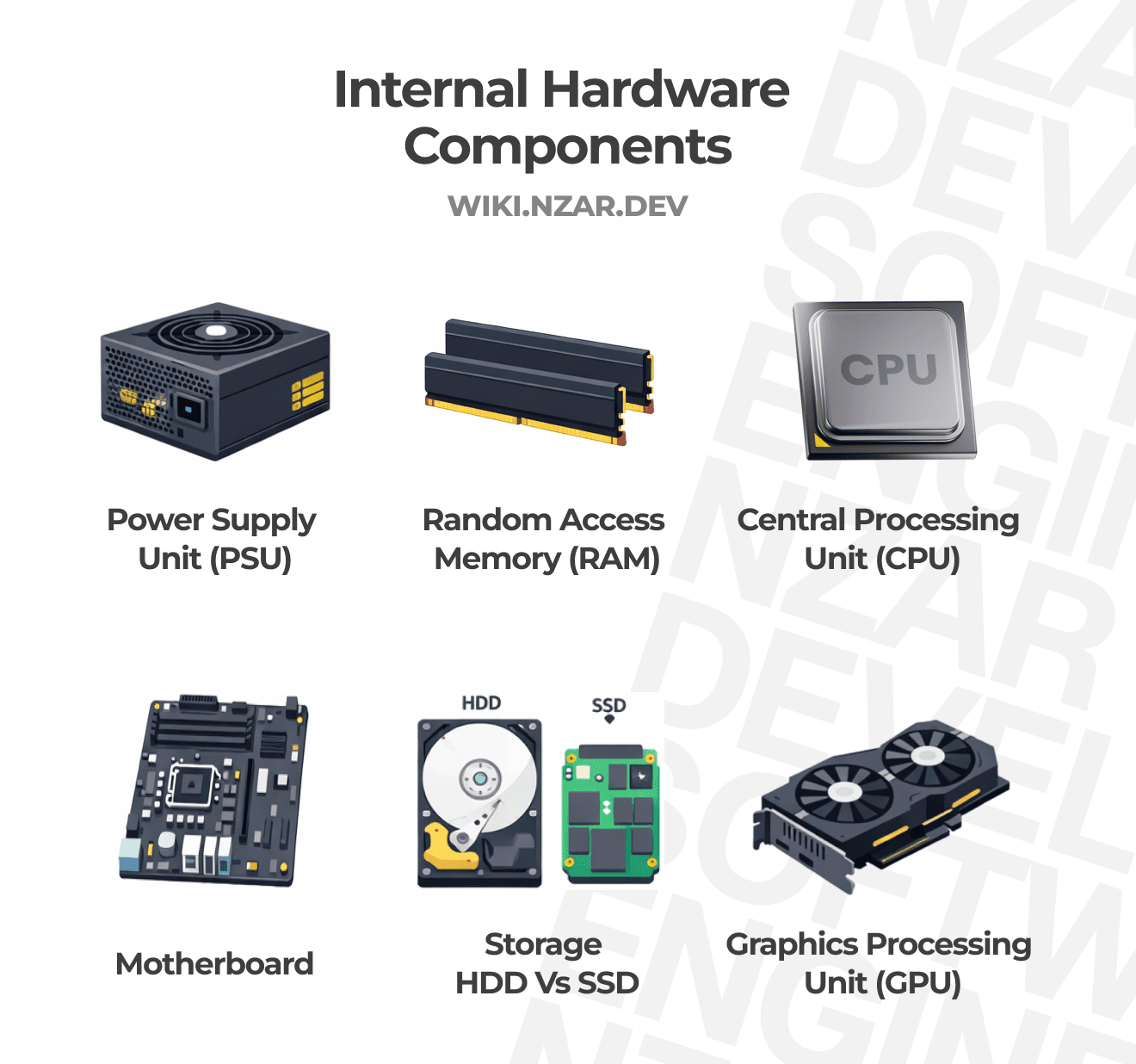
The PSU (Power Supply Unit) sends electricity through multiple cables (you've probably seen those colorful bundles of wires) to the motherboard; the big circuit board that everything plugs into.
What Is the Motherboard?
Think of the motherboard as the central nervous system of your computer. It's literally the board that connects everything together. Without it, your CPU can't talk to your RAM, your RAM can't talk to your storage, and nothing would work.
The motherboard has:
- Power connectors: A big 24-pin connector for main power, plus an 8-pin connector specifically for the CPU
- CPU socket: A special slot where your processor sits
- RAM slots: Usually 2-4 long slots for memory sticks
- PCIe slots: For graphics cards and other expansion cards
- Storage connectors: SATA ports or M.2 slots for your drives
- A chipset: A chip that manages traffic between all components
- A BIOS/UEFI chip: A tiny chip with special firmware that knows how to wake everything up
When power hits the motherboard, it starts distributing it to all the connected components through these various slots and connectors.
Milestone 2 Complete!
Power is now flowing through the motherboard, reaching all the connection points. But nothing's "thinking" yet...
Step 3: The BIOS/UEFI Wakes Up First
Here's where things get interesting. When the motherboard gets power, there's a tiny chip that wakes up immediately, the BIOS (Basic Input/Output System) or UEFI (Unified Extensible Firmware Interface).
This chip contains firmware (software permanently stored in hardware) that knows what to do when the computer turns on. It's stored in a special type of memory called ROM (Read-Only Memory) that doesn't forget everything when you turn off the power.
What Does BIOS/UEFI Do?
Think of the BIOS as the computer's wake-up routine:
First thing it does: POST (Power-On Self-Test)
- "Hey CPU, you there? ✅"
- "RAM, you working? ✅"
- "Graphics card? ✅"
- "Keyboard? ✅"
If everything checks out, you usually hear a single beep, and you see the manufacturer's logo on screen.
Next, it initializes hardware:
- Wakes up all the connected devices
- Configures them with basic settings
- Gets them ready to work
Finally, it looks for the operating system:
- Checks your storage drives for a bootloader
- Finds Windows, macOS, or Linux
- Hands over control to the OS
The BIOS/UEFI is like the stage manager that makes sure all the actors (components) are ready before the show (operating system) begins.
Milestone 3 Complete!
All hardware has been checked and initialized. The BIOS knows what's connected and what's not. Time to wake up the brain...
Step 4: The CPU Starts Thinking
The CPU (Central Processing Unit) is the brain of your computer. Once it receives power and the wake-up call from the BIOS, it starts executing instructions.
What Is the CPU?
The CPU is a tiny chip (about the size of a large postage stamp) that contains billions of microscopic transistors. These transistors switch on and off millions of times per second to perform calculations and make decisions.
What makes the CPU special:
- Executes instructions: Every action on your computer is broken down into tiny instructions that the CPU processes
- Does math and logic: Addition, subtraction, comparisons, "if this then that" decisions
- Coordinates everything: Tells other components what to do and when
- Multiple cores: Modern CPUs have multiple "cores" (like having multiple brains) so they can do many things simultaneously
The CPU also has super-fast memory built right into it called cache (L1, L2, L3). This cache stores frequently used data so the CPU doesn't have to keep asking RAM for the same information over and over.
At this stage, the CPU starts executing BIOS instructions and prepares to load the operating system.
Milestone 4 Complete!
The brain is awake and thinking. But it needs somewhere to store its thoughts temporarily...
Step 5: RAM Springs Into Action
Your CPU is thinking, but it needs a workspace, somewhere to put the data it's currently working with. That's where RAM (Random Access Memory) comes in.
What Is RAM?
RAM is your computer's short-term memory, its scratch pad, its workbench.
Here's what makes RAM special:
- Super fast: Much, much faster than your hard drive or SSD
- Temporary storage: Holds data only while powered, turn off the computer and poof, IT'S GONE
- Random access: The CPU can grab any piece of data from any location instantly (that's what "random access" means)
- Actively used: Only the programs you're currently running and the data you're currently using sits here
Think of it this way:
- Storage (HDD/SSD) = Your filing cabinet (slow to access, but permanent)
- RAM = Your desk (fast to access, but temporary)
- CPU Cache = Your hands (fastest, but tiny space)
When you open a program, it gets loaded from storage into RAM. When you close it, it's removed from RAM. The more RAM you have, the more programs you can have open at once without slowdowns.
Milestone 5 Complete!
The CPU now has a fast workspace (RAM) to load and manipulate data. But where does that data come from permanently?
Step 6: Storage Wakes Up
Now we need permanent storage, a place where all your files, programs, and even the operating system itself lives. This is either a Hard Disk Drive (HDD) or Solid State Drive (SSD).
The Two Types of Storage
HDD (Hard Disk Drive) - The Old Guard:
- Has spinning magnetic disks (platters) inside, like tiny record players
- A mechanical arm with a read/write head zooms across the platters
- Slower, but you get WAY more storage for your money
- Makes a slight humming/clicking sound when working
- Can break if you drop it while it's running (those platters are spinning at 5,400-7,200 RPM!)
SSD (Solid State Drive) - The New Champion:
- No moving parts at all, just memory chips
- Reads and writes data electronically, like a super-advanced USB stick
- MUCH faster (we're talking 5-10x faster than HDDs, sometimes more)
- Completely silent
- More expensive per gigabyte, but prices keep dropping
- Way more durable (no mechanical parts to break)
Most modern computers use SSDs, especially for the main drive where the operating system lives. The speed difference is night and day.
At this point, the storage device spins up (if it's HDD) or becomes ready (if it's SSD), and the BIOS can see it and access the data stored on it.
Milestone 6 Complete!
We now have access to permanent storage where all our programs and files live. Time to load the operating system...
Step 7: The Operating System Loads
This is the big moment! The BIOS/UEFI finds the bootloader on your storage drive, bootloader is a tiny program whose only job is to load the operating system (Windows, macOS, Linux, etc.).
What Happens During OS Boot?
Phase 1: The Bootloader
- The bootloader is a small program in a special area of your drive
- It knows where the operating system files are located
- It loads the core of the OS (called the kernel) into RAM
Phase 2: The Kernel Takes Over
- The kernel is the heart of the operating system
- It starts loading device drivers (software that lets the OS talk to your hardware)
- It initializes system services and background processes
Phase 3: User Interface
- Finally, you see the login screen or desktop
- The OS is now in control and ready for you to use
From this point on, the operating system manages everything, it schedules which programs get CPU time, it allocates RAM, it manages file access, and it handles all the communication between software and hardware.
Milestone 7 Complete!
The operating system is loaded and in control. But we still can't see anything without the next component...
Step 8: Graphics Come Alive
Everything that appears on your screen is handled by the GPU (Graphics Processing Unit). Whether it's your desktop, a video, or a game, the GPU is doing the heavy lifting.
What Is the GPU?
The GPU is a specialized processor that's designed for one thing: handling graphics and visual calculations.
Here's what makes it different from a CPU:
- Parallel Processing Monster: While a CPU might have 4-16 cores, a GPU has hundreds or thousands of smaller cores
- Specialized for Graphics: Optimized for the specific math needed to render images
- Handles Repetition Well: Great at doing the same calculation thousands of times (like coloring pixels)
Two Types of GPUs
Integrated GPU (built into the CPU):
- Shares system RAM with the CPU
- Good enough for: web browsing, office work, video playback, light gaming
- No extra cost, no extra power draw
- Examples: Intel UHD Graphics, AMD Radeon Graphics (in Ryzen CPUs)
Dedicated GPU (separate graphics card):
- Has its own memory called VRAM (Video RAM)
- Required for: modern gaming, video editing, 3D rendering, AI/machine learning
- Plugs into a PCIe slot on the motherboard
- More expensive, uses more power, generates more heat
- Examples: NVIDIA GeForce RTX series, AMD Radeon RX series
The GPU takes instructions from the CPU, processes them into images, and sends the final picture to your monitor. This happens dozens or hundreds of times per second (measured in FPS - frames per second).
Milestone 8 Complete!
Graphics are rendering and you can see your screen. Almost there! Now we need to interact with the computer...
Step 9: Peripherals Connect
Finally, all your input and output devices spring to life:
Input Devices [You ➛ Computer]:
- Keyboard: Types commands and text
- Mouse/Trackpad: Points and clicks
- Microphone: Captures audio input
- Webcam: Captures video input
- Game Controllers: For gaming
- Drawing Tablets: For digital art
Output Devices [Computer ➛ You]:
- Monitor: Displays everything visually
- Speakers/Headphones: Plays audio
- Printers: Creates physical documents
Storage & Network:
- External Drives: Additional storage via USB
- Network Adapter: Connects to the internet (Ethernet or Wi-Fi)
- Bluetooth Adapter: Connects wireless devices
These peripherals communicate with the motherboard through various ports (USB, HDMI, DisplayPort, audio jacks, etc.) and the operating system loads the appropriate drivers to make them work.
Milestone 9 Complete!
You can now interact with your computer, and it can communicate back to you. The journey is complete!
How Everything Works Together
Alright, so all the components are powered up and ready. But how do they actually work together when you're using your computer?
Let's say you want to open a web browser and watch a video. Here's the journey that happens in milliseconds:
The Flow:
- You click the mouse on the browser icon
- Mouse sends signal through USB to the motherboard
- Motherboard routes signal to the CPU
- CPU processes the click: "Oh, they want to open Chrome!"
- CPU tells storage: "Hey, load Chrome's files"
- Storage reads the program files (from HDD/SSD)
- Files are copied into RAM for fast access
- CPU executes Chrome's code from RAM
- GPU renders the browser window
- Monitor displays Chrome on your screen
Then you click on a YouTube video:
- CPU processes the URL request
- Network adapter fetches the video from the internet
- RAM stores the video data as it streams in
- CPU decodes the video format
- GPU renders each frame of the video
- Monitor shows the video at 30 or 60 FPS
- Sound card/audio chip processes the audio
- Speakers output the sound
All of this happens constantly, simultaneously, for every program you have open. The CPU is juggling hundreds of tasks per second, the RAM is shuffling data around, the GPU is rendering thousands of frames, and the storage is reading and writing files.
It's a well-designed system where every component communicates at exactly the right time.
Why We Need Every Single Component
You might wonder: "Can't we skip some of these parts?"
Nope! Each one is essential. Here's what happens if you remove each component:
| Component Missing | What Happens |
|---|---|
| Power Supply | Nothing turns on at all. No power = dead computer |
| Motherboard | Components can't talk to each other. It's like having a brain, muscles, and eyes but no nervous system |
| BIOS/UEFI | Computer powers on but doesn't know what to do. It's braindead without these initial instructions |
| CPU | No thinking, no processing, no decisions. Just... nothing |
| RAM | Computer might turn on but can't load the OS or any programs. Or it runs incredibly slow using storage as a substitute |
| Storage | Nothing permanent. No OS, no files, no programs. You'd have to load everything over the network (PXE boot) |
| GPU | No display at all (unless you have integrated graphics as backup) |
| Cooling | Components overheat in minutes, then throttle performance or shut down to prevent damage |
Every component is a critical piece of the puzzle. Remove one, and the whole system fails or runs terribly.
The Hidden Hero: Cooling
We haven't talked much about cooling, but it's absolutely critical. All these components generate heat (lots of it). Especially the CPU and GPU.
Without proper cooling, here's what happens:
- Components reach dangerous temperatures (80°C, 90°C, even 100°C+)
- The CPU and GPU throttle (slow themselves down to generate less heat)
- Performance tanks
- Eventually, the system shuts down to prevent permanent damage
- Worst case: components literally burn out and die
Cooling Solutions:
CPU Cooling:
- Air Cooling: Heatsink (metal fins) + fan (most common)
- Liquid Cooling: Water/coolant circulates through tubes and radiators (better cooling, quieter, more expensive)
GPU Cooling:
- Built-in fans and heatsinks on the graphics card
- High-end cards have 2-3 fans
Case Cooling:
- Intake fans (front/bottom) bring cool air in
- Exhaust fans (back/top) push hot air out
- Creates airflow through the entire case
Thermal Paste:
- A special compound applied between the CPU/GPU and their coolers
- Fills microscopic gaps to improve heat transfer
- Needs to be replaced every few years
Think of cooling as the lungs of your computer. Without it, everything suffocates.
The CPU's Constant Cycle
Let's zoom in on what the CPU does every single second. It follows a cycle called the Fetch-Decode-Execute Cycle, and it does this billions of times per second:
Step 1: Fetch
The CPU grabs the next instruction from RAM. Example: "Add these two numbers"
Step 2: Decode
The CPU figures out what the instruction means. "Oh, this is an addition operation"
Step 3: Execute
The CPU actually performs the operation. Adds the numbers together
Step 4: Store
The CPU writes the result back to RAM or a register. The sum is now stored for the next instruction to use
Then it repeats. Fetch -> Decode -> Execute -> Store -> Fetch -> Decode -> Execute -> Store...
Modern CPUs do this at speeds like 3.5 GHz (3.5 billion cycles per second) or even higher. With multiple cores, that means potentially tens of billions of instructions per second across the whole CPU.
That's why your computer feels instant when you click something, it's actually processing your request billions of times faster than you can perceive.
Putting It All Together: The Complete Picture
Let's review the entire journey from button press to a working computer:
- Power flows from wall -> PSU (Power Supply Unit) -> Motherboard
- BIOS wakes up and checks all hardware (POST)
- CPU starts thinking and processes instructions
- RAM becomes available as fast temporary storage
- Storage wakes up with all permanent files
- Operating system loads from storage into RAM
- GPU renders graphics to your monitor
- Peripherals connect so you can interact
- Cooling keeps everything from melting
- The cycle continues billions of times per second
Every single time you press the power button, dozens of components, billions of transistors, all working in perfect harmony.
What You've Learned
You now understand:
- How electricity flows through your computer
- What each major component does
- Why every component is necessary
- How components communicate with each other
- The boot process from power-on to desktop
- The constant cycles that keep your computer running
The next time someone asks How does a computer work?, you won't just say It's magic. You'll know the real answer, and it's way cooler than magic.
Final Thoughts
What looks like a simple black box is actually one of humanity's most complex inventions. Engineers spent decades perfecting each component, and somehow they all work together seamlessly.
When you press that power button, you're not just turning on a machine—you're conducting an orchestra of electronic components, each playing their part in perfect timing.
And now you know exactly how the symphony works.
Welcome to the world of computer hardware. 🖥️⚡
Trusted Resources for Going Deeper
If a particular section sparks curiosity, these are excellent, well-respected resources to explore further:
Code: The Hidden Language of Computer Hardware and Software By Charles Petzold
A brilliant, beginner-friendly journey from electricity to software. Highly recommended if you want to feel how computers are built from first principles.
Computer Systems: A Programmer's Perspective By Bryant & O'Hallaron
The gold standard for software engineers who want to understand hardware, memory, processes, and performance, without becoming hardware engineers.
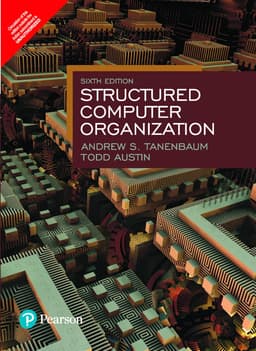
Structured Computer Organization By Andrew S. Tanenbaum
Excellent for understanding computer architecture layers, from digital logic to operating systems.
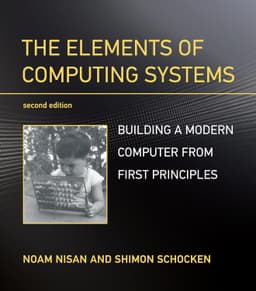
The Elements of Computing Systems By Nisan & Schocken
A hands-on approach: build a computer step by step, from logic gates to a working system.
You don't need to read all of these. One is more than enough depending on how deep you want to go.