

The Box Model: Spacing, Sizing & Borders
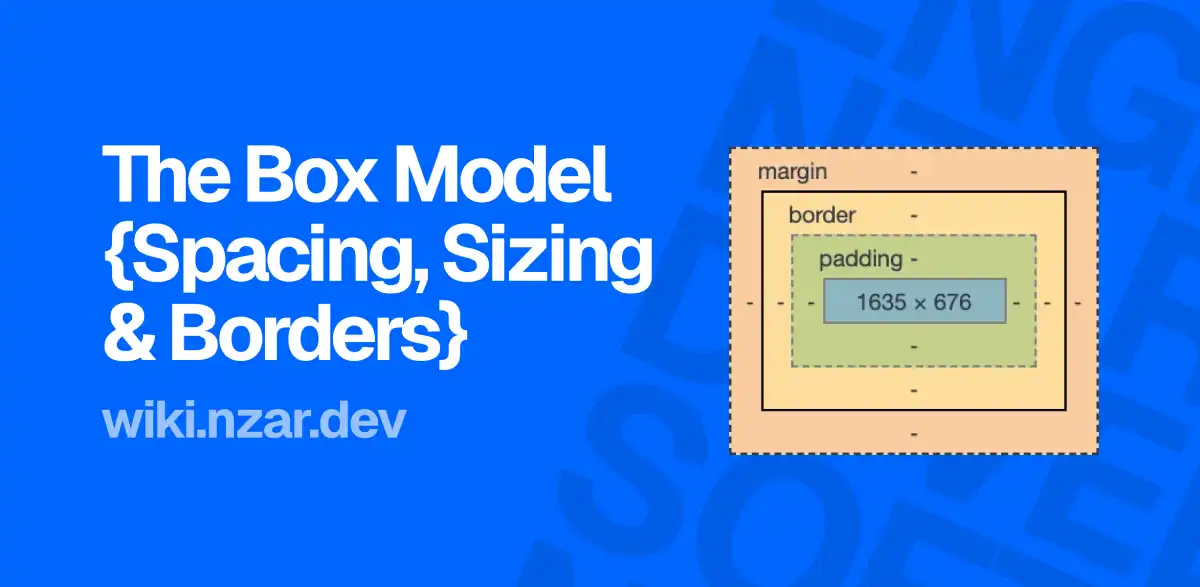
You give an element width: 300px, add a little padding, and suddenly it is wider than 300 pixels. Or you set a margin between two elements and the gap is smaller than you expected. Or your whole page has a strange empty strip around it that you never asked for.
None of these are bugs. They are the box model doing exactly what it is designed to do, and it just hasn't been explained to you yet.
Everything Is a Box
Here is the single most useful idea in CSS layout: the browser treats every element as a rectangular box. A paragraph is a box. A heading is a box. A link, an image, a button. Even a tiny <span> is a box.
Remember from the browser article that the browser builds the DOM and then works out the style of each element? After the cascade picks the final values, the browser uses those values to figure out how big each box is and where it goes. Sizes and spacing are the input to that step, and the box model is the set of rules it follows.
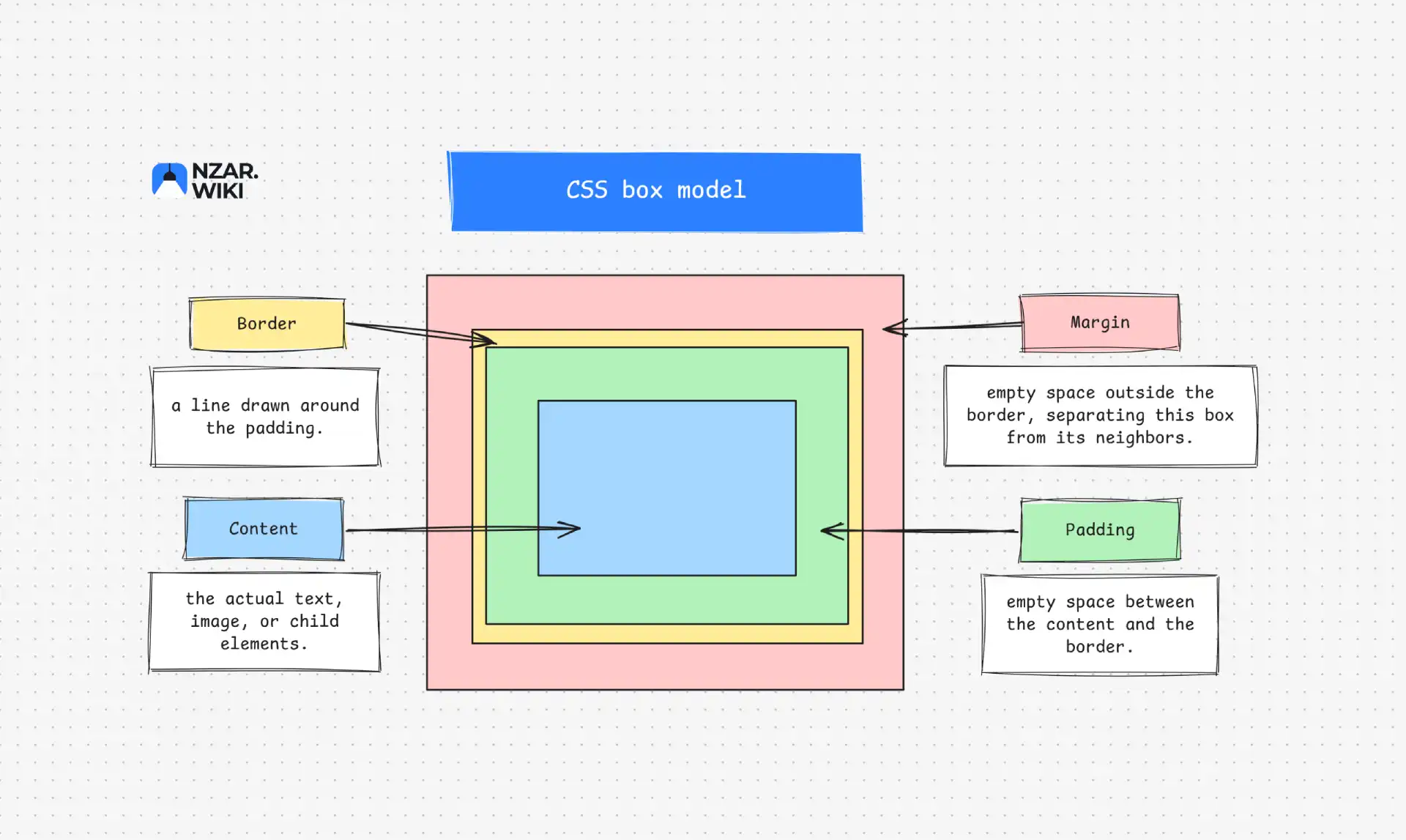
Each box is made of four layers, from the inside out:
- Content: the actual text, image, or child elements.
- Padding: empty space between the content and the border.
- Border: a line drawn around the padding.
- Margin: empty space outside the border, separating this box from its neighbors.
Picture a product on a store shelf. The product is the content. The bubble wrap around it is the padding. The cardboard box is the border. The gap between that box and the next one on the shelf is the margin. MDN compares the same structure to the layers of an onion in its box model lesson.
Here is a box with all four layers set:
.box {
  width: 300px;
  padding: 20px;
  border: 5px solid black;
  margin: 10px;
}
One important detail: the background color of an element paints behind the content, the padding, and under the border. It never paints into the margin. Margin is always transparent, which is why it is used purely for spacing between boxes.
Content: Width and Height
What decides the size of the content area? By default, nothing, if you do not set it. A block element like a <div> or <p> has width: auto, which means fill all the available horizontal space. Its height is auto too, which means as tall as the content needs.
When you set width or height yourself, you are (by default) sizing the content area only. Keep that in mind, because it is the source of the most famous box model surprise, which we will get to shortly.
Sizes can use different units. px is a fixed pixel size, % is a percentage of the parent's width, and rem is relative to the root font size of the page. You will meet many more, and we will use them properly in the layout articles.
There is also a safer way to limit size than fixing it. max-width says "grow as needed, but never past this," and min-width does the opposite:
img {
  max-width: 100%; /* never wider than the parent */
}

.article {
  max-width: 700px;
  margin: 0 auto; /* centers the box, more on this below */
}
Boxes that flex with their container instead of locking to a number are the foundation of responsive design.
Padding: Space Inside the Box
Padding pushes the content away from the border. It is the breathing room inside a button or a card.
.button {
  padding: 12px 24px;
}
That single line uses the shorthand, and the number of values changes its meaning:
padding: 10px; /* all four sides */
padding: 10px 20px; /* top and bottom, then left and right */
padding: 10px 20px 30px; /* top, left and right, bottom */
padding: 10px 20px 30px 40px; /* top, right, bottom, left */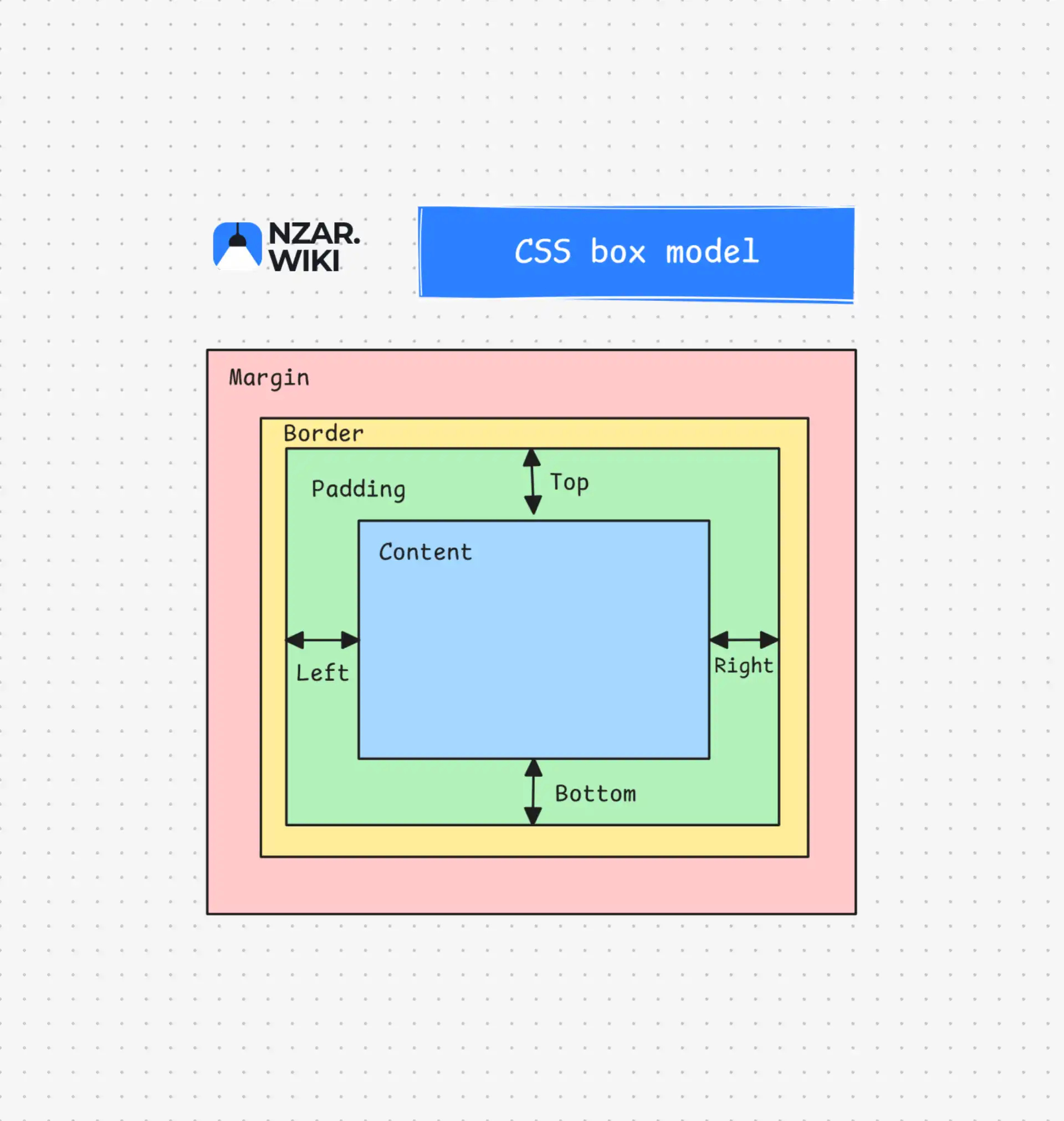
With four values, the order goes clockwise starting from the top. Top, right,
bottom, left. Many developers remember it as TRouBLe, which is a handy way to
never forget it. The same rules apply to margin.
You can also set one side at a time with padding-top, padding-right, padding-bottom and padding-left.
One quirk worth knowing: a percentage padding is calculated from the width of the parent, even for padding-top and padding-bottom. So padding-top: 10% is not 10% of the height. This behavior is what makes some tricks possible, but it surprises many people the first time.
Border: The Line Around the Box
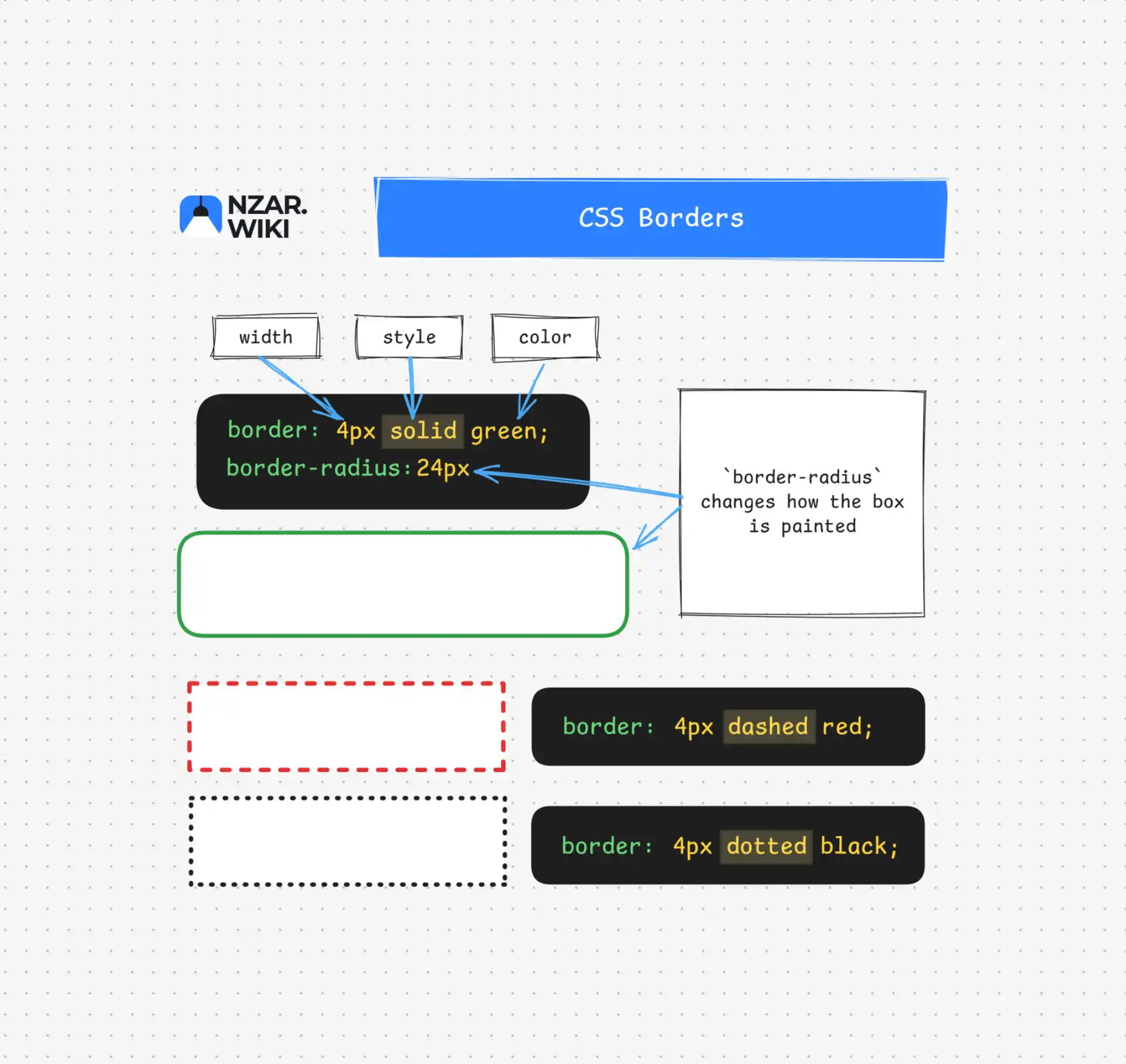
The border sits between the padding and the margin. By default, its width is zero, so you cannot see it. You create one with the border shorthand, which takes three things:
.card {
  border: 1px solid #ccc;
  /*      width style color */
}
The style part is required. The default border-style is none, so setting only border-width: 5px and border-color: red will show nothing at all. If you have ever written a border that mysteriously did not appear, this is the most likely reason.
You can style one side with border-bottom, and round the corners with border-radius:
.avatar {
  border: 2px solid white;
  border-radius: 50%; /* turns a square into a circle */
}
border-radius changes how the box is painted, not how much space it takes.
A related tool is outline, which draws a line around an element like a border does. The difference is that an outline does not take up space and never changes the layout. That is why browsers use it for the focus ring around a selected link or input. The same is true for box-shadow: it is drawn outside the box but does not push anything.
Margin: Space Around the Box
Margin creates distance between a box and its neighbors. Unlike padding, it lives outside the border and shows the parent's background.
.card {
  margin-bottom: 24px;
}
Remember the browser's default stylesheet from the last article? It sets margins too. In most browsers, <body> has a small default margin of around 8 pixels, and headings and paragraphs have their own vertical margins. That is the empty strip around a page you never asked for. A lot of developers reset it right away:
body {
  margin: 0;
}
Centering with auto
Here is one of the most useful tricks in CSS. A block box with a set width and margin-left and margin-right set to auto will split the leftover horizontal space evenly on both sides:
.container {
  max-width: 800px;
  margin: 0 auto; /* 0 top and bottom, auto left and right */
}
That is how most websites center their main content column. Note that this works horizontally only. For vertical centering, you will use the layout tools coming in later articles.
The Size Trap: Why Your Box Is Wider Than You Asked
Now the classic surprise. Look at this rule again:
.box {
  width: 300px;
  padding: 20px;
  border: 5px solid black;
}
How wide is the box on screen? Not 300 pixels. By default, width only sets the content area. Padding and border are added on top:
300 (content) + 40 (padding, both sides) + 10 (border, both sides) = 350px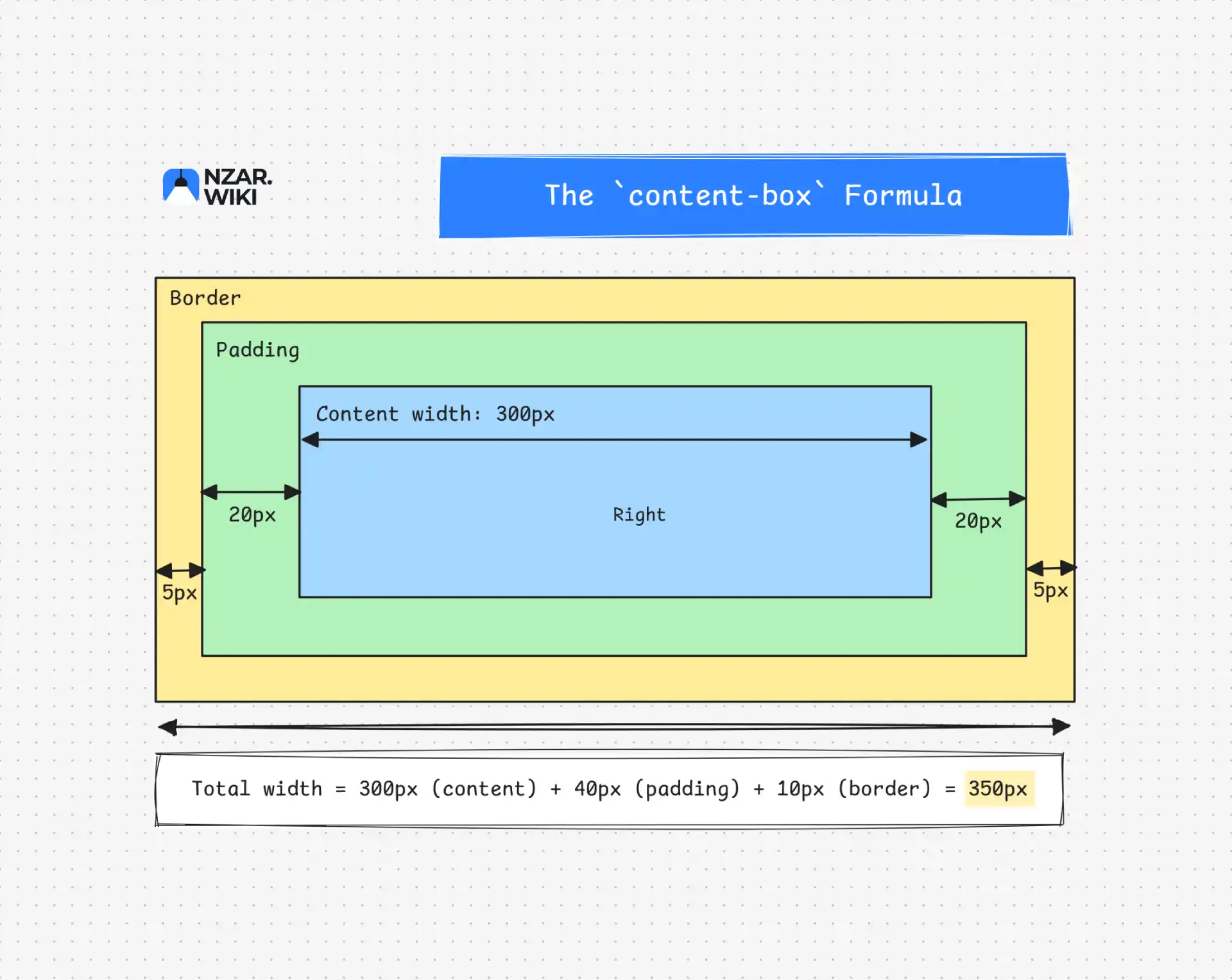
This default behavior is called box-sizing: content-box. It is how the original CSS specification worked, and it is still the default today, so old pages keep rendering the same way.
It gets worse with percentages:
.sidebar {
  width: 100%;
  padding: 20px;
}
Inside a 400px parent, this box is 440px wide (400 plus 40 of padding). It overflows its container and you get a horizontal scrollbar. Compare that with width: auto, where the browser subtracts the padding and border from the available space for you. That is why an unsized block never overflows, but width: 100% can.
The Fix: box-sizing: border-box
You can change what width measures:
.box {
  box-sizing: border-box;
  width: 300px;
  padding: 20px;
  border: 5px solid black;
}
With border-box, the 300px includes the content, padding and border. The content shrinks to fit (250px here), and the visible box is exactly 300px. Margin is still outside and is never part of the width.
Almost every modern project applies this to everything at the start of the stylesheet:
*,
*::before,
*::after {
  box-sizing: border-box;
}
This is a great use of what you learned in the last article. The universal selector * has zero specificity, so this reset is trivially easy to override anywhere it needs to be. Also, box-sizing is not inherited by default, which is why the rule targets every element (and its pseudo-elements) directly instead of just setting it on body.
Block, Inline, and Why Some Boxes Ignore Your Sizes
Have you ever set a width on a <span> or a <a> and watched nothing happen? That is because not all boxes behave the same way. The display value decides how a box takes part in the layout, and the two basic kinds are:
- Block boxes (like
<div>,<p>,<h1>): start on a new line and stretch to fill the available width. Width, height, padding, border and margin all work fully. - Inline boxes (like
<span>,<a>,<strong>): flow within a line of text.widthandheightare ignored, and vertical margins have no effect. Horizontal padding and margin push neighbors away, but vertical padding and borders are painted without pushing surrounding lines, so they can overlap the text above and below.
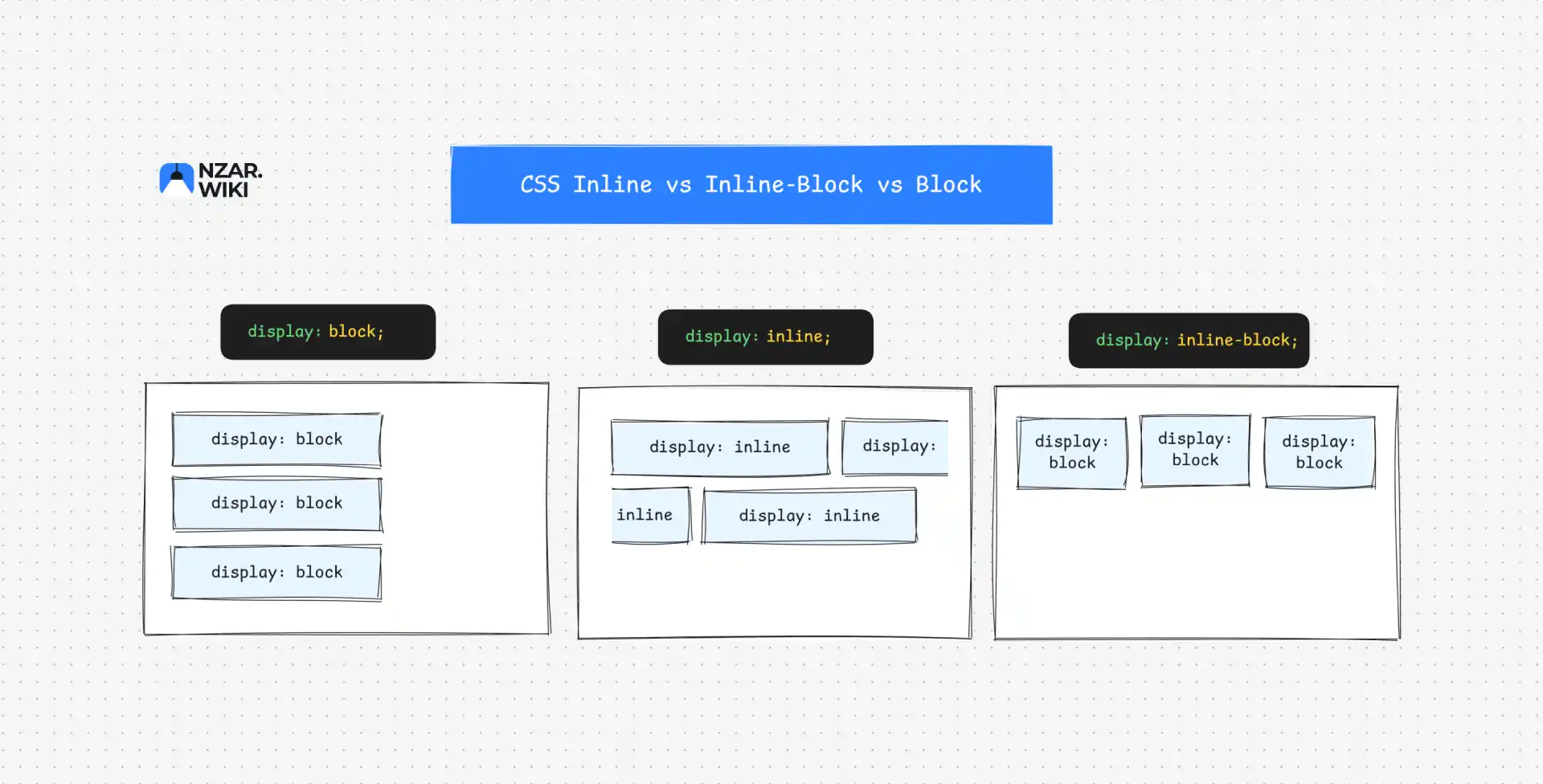
If you need an inline element to respect width and height, you can change its display to inline-block. It sits in a line like text, but its inside behaves like a block.
a.button {
  display: inline-block;
  padding: 12px 24px; /* now vertical padding pushes other content too */
}
The display property has more values, including the modern ones for flexbox and grid. Those get full articles of their own.
Margin Collapsing: Where Did My Space Go?
Here is the last piece, and it catches almost everyone. Take two paragraphs, one with margin-bottom: 30px and the next with margin-top: 20px. How far apart are they?
Not 50 pixels. They are 30 pixels apart. When the vertical margins of two neighboring blocks touch, they collapse into a single margin equal to the larger one. Only vertical margins do this. Horizontal margins never collapse.
It also happens between a parent and its first or last child. Look at this:
<div class="parent">
  <h2>Title</h2>
</div>.parent {
background: lightgray;
}
h2 {
margin-top: 40px;
}You would expect the h2 to sit 40px below the top edge of the gray box. Instead, the gray box itself moves down, and the h2 touches its top edge. The child's margin collapsed with the parent's margin, and ended up outside the parent.
This happens because nothing separates them: no border, no padding, no content in between. Adding any of these to the parent stops it:
.parent {
  padding-top: 1px; /* or a border */
}

/* or, a clean modern option: */
.parent {
  display: flow-root; /* creates a new formatting context, no side effects */
}
Two more facts help a lot. Margins do not collapse inside flex and grid containers, and margins of floating or absolutely positioned elements never collapse either. The full list of cases is in MDN's guide to margin collapsing. Because of this and other reasons, modern layouts often use gap inside flex or grid containers for spacing between items, which we will meet in the Flexbox guide.
Seeing the Box in DevTools
You never have to guess any of this. Open your browser DevTools, select an element, and look at the Computed tab. You will find a diagram showing content, padding, border and margin with the exact pixel values of each layer. Hovering over an element in the page also highlights its layers in different colors right on the page.
This is the fastest way to answer questions like "why is this gap 24px and not 16px?" or "which layer is causing this overflow?" If you have not used these tools before, the Chrome DevToo guide by Google shows you where to start.
Why This Matters
The box model is the foundation of all CSS layout and debugging:
- Fast Debugging: Issues like unexpected scrollbars (
width: 100%with padding oncontent-box), collapsing margins, or inline buttons ignoring height become quick two-minute DevTools checks. - Fewer Bugs: Setting
box-sizing: border-box, using consistent spacing, and favoringmax-widthprevents most layout bugs before they happen. Flexbox and Grid also rely on it for sizing items.
Now that you can size and space boxes, the next step is targeting specific elements. Modern CSS goes far beyond basic classes and IDs, letting you select items by their state, content, position, or relationships. That is where CSS starts to feel like a superpower.