

Every HTML Tag You Actually Need to Know
Open a recipe website and look at the source code. You'll spot tags for the title, the ingredients list, the step-by-step instructions, maybe a rating widget, a comment section, an ad or two. It can feel like there's an endless list of these things to learn before you can build anything real.
There isn't. HTML has well over a hundred tags in total, and MDN's element reference lists every single one of them, but the vast majority of everyday content gets built from a small, repeating handful. This article is that handful.
You Don't Need to Memorize All of Them
Think of it the way you'd think about vocabulary in a language you speak fluently. English has hundreds of thousands of words, but your everyday conversations lean on a few thousand of them, over and over. HTML works the same way. A handful of tags cover the overwhelming majority of what you'll actually write, and the rest you'll pick up naturally, exactly when you need them.
This article covers that everyday handful. A few categories of tags, headings and paragraphs, links, lists, and basic containers, get proper, dedicated articles of their own later in this part, forms, tables, images, embedded media, and the semantic layout tags all deserve more room than a quick mention here, so we'll point to exactly where each one lives as we go.
Anatomy of an HTML Tag
Before diving into specific tags, it helps to understand how a standard HTML element is built. Most HTML elements consist of three core parts: an opening tag, the content, and a closing tag.
- Opening Tag: Marks where the element begins (e.g.,
<p>). This is also where you place attributes likeclassorhrefto add extra information to the element. - Content: The actual payload inside, whether that's plain text, an image, or other nested HTML elements.
- Closing Tag: Marks where the element ends, signified by a forward slash before the tag name (e.g.,
</p>).
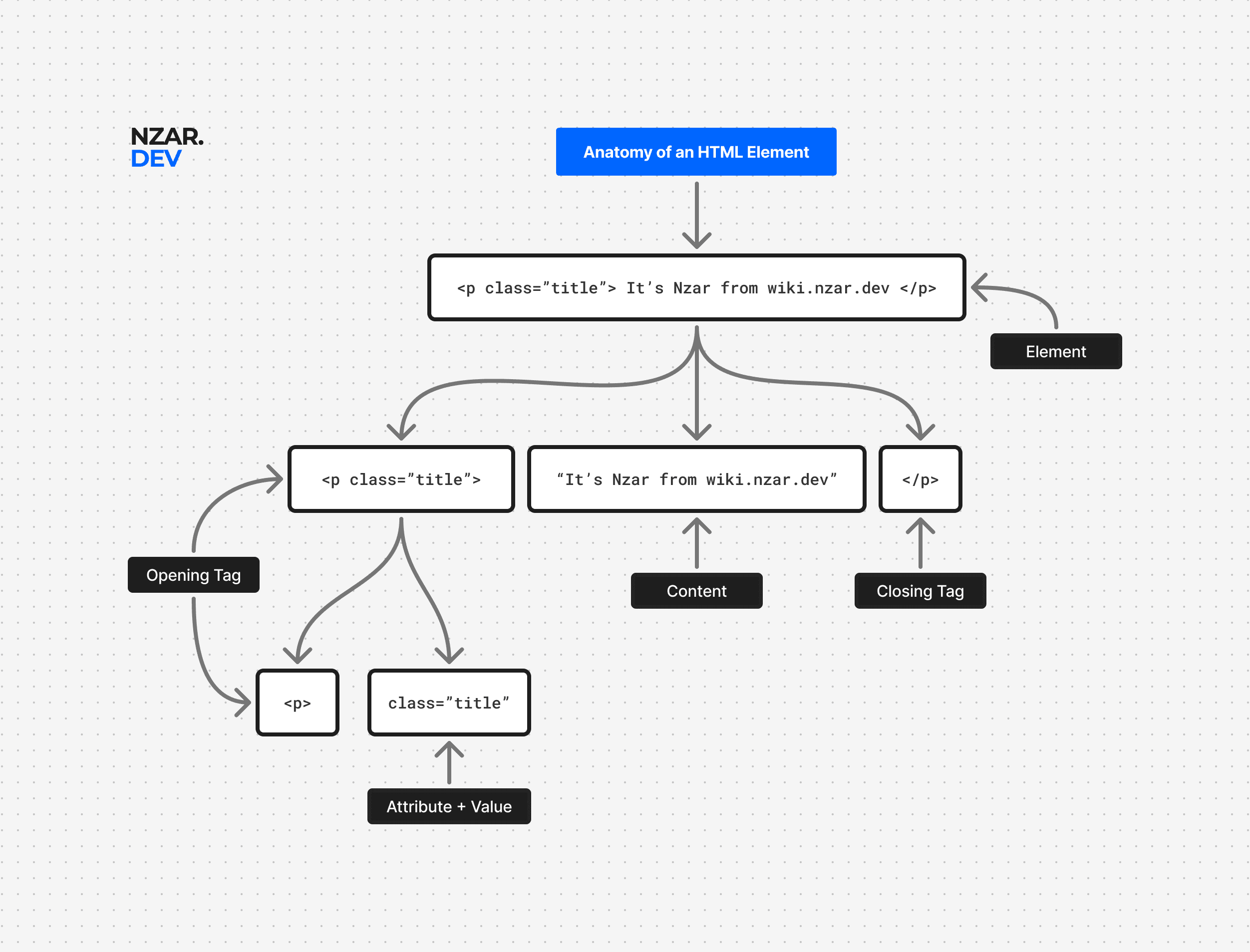
Together, the opening tag, content, and closing tag form the complete HTML element. Note that a few exceptions exist, known as self-closing or void tags (like <br> or <img>), which do not wrap content and therefore do not require a separate closing tag.
Headings: Your Content's Outline
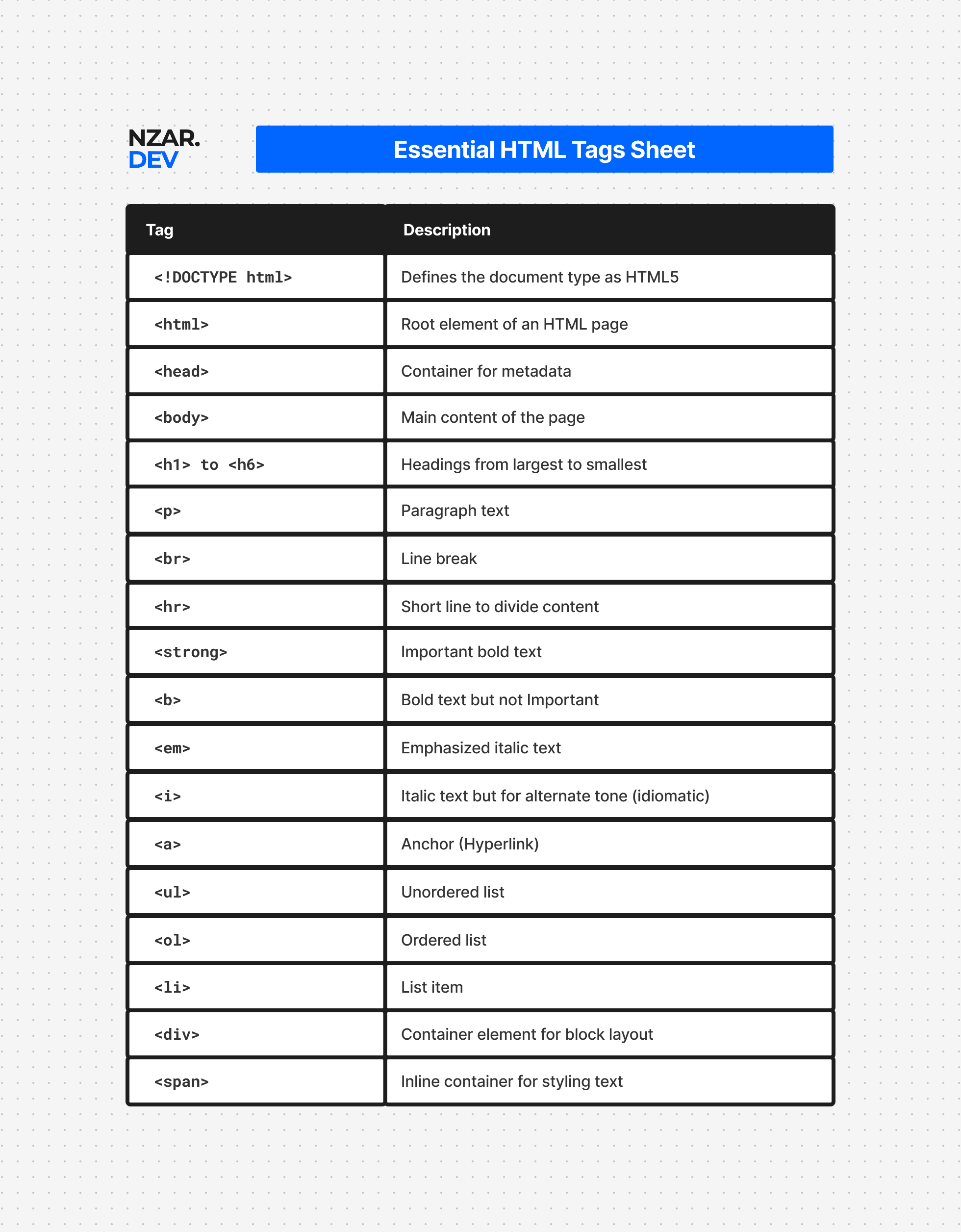
Headings, From <h1> into <h6>, aren't just bigger, bolder text. They define your page's actual outline, the same way a book's chapter titles and section headers do.
<h1>Page Title</h1>
<h2>A Major Section</h2>
<h3>A Subsection</h3>
A page should generally have exactly one <h1>, its main title, and then use <h2> through <h6> to nest sections and subsections underneath it, in order, without skipping levels just because a smaller heading happened to look better visually. Screen readers let users jump directly between headings, the same way you'd skim a book's table of contents, and search engines lean on this same outline to understand what your page is actually about. Getting headings right is a small habit that pays off in both accessibility and SEO, both covered properly later in this part.
Paragraphs and Line Breaks
The humble <p> tag wraps a block of regular text, a paragraph, exactly like it sounds.
<p>This is a normal paragraph of text.</p><br> forces a single line break inside a block of content, useful occasionally, like inside a mailing address, but easy to overuse as a lazy substitute for actual spacing, which is really CSS's job, covered properly in the next part of this wiki. <hr> draws a horizontal line, typically used to mark a thematic break between sections of content.
Text-Level Semantics: Meaning, Not Just Looks
Here's a distinction worth catching early, since it's a preview of the entire next article. <strong> and <b> can both make text appear bold, and <em> and <i> can both make text appear italic, but they don't mean the same thing.
<strong> tells the browser, and anything reading your page, that this text carries real importance, a warning, a critical instruction. <b> just says "make this bold," with no implied meaning at all, useful for something like a keyword you want to visually stand out without implying it's more important than the rest. The same split applies to <em> (genuine emphasis, changing the meaning of the sentence) versus <i> (italics for a different reason, like a book title). Visually, these often look identical. Semantically, they tell a screen reader, or a search engine, two very different things. This exact idea, choosing the tag that means the right thing rather than just looks the right way, is what the next article in this part is entirely about.
Links: The Anchor Tag
The <a> tag is what actually makes the web a web, a clickable connection from one page to another.
<a href="https://example.com">Visit Example</a> <a href="/about">About Us</a>The href attribute holds the destination, either a full address like the first example, or a relative path like the second, meaning "the /about page on this same site." This is the same URL structure covered back in the networking article in the Foundation chapter, just written directly into your HTML. One small but important habit: links that open in a new tab, using target="_blank", should almost always include rel="noopener" alongside it, which prevents the new page from getting a dangerous level of access back to the page that opened it.
Lists: Ordered, Unordered and Description
Three list types cover almost every situation you'll run into. An unordered list, <ul>, is for items where order doesn't matter, a set of bullet points.
<ul>
  <li>Milk</li>
  <li>Eggs</li>
</ul>
An ordered list, <ol>, is for items where sequence matters, step one, then step two. A description list, <dl>, pairs terms with their definitions, using <dt> for the term and <dd> for its description, less common day to day, but exactly right when you're genuinely describing a set of terms, like a glossary.
Generic Containers: <div> and <span>
<div> and <span> are the two tags with no built-in meaning at all, pure containers, used purely to group other content together, usually so CSS or JavaScript can target that group as a single unit. <div> groups block-level content, while <span> wraps a small piece of inline text, like a single word you want to style differently within a sentence.
They're genuinely useful, and you'll use them constantly. But they should be your last resort, not your first instinct. Before reaching for a <div>, it's always worth asking whether a more meaningful tag already exists for what you're building, which is exactly the question the next article is built around.
Where the Rest of HTML Actually Lives
A handful of important categories get their own dedicated articles later in this part, rather than a rushed mention here. Forms, <form>, <input>, <button>, and everything around validation and accessibility, get their own full article. Tables, <table> and its related tags, get their own article on exactly when a table is, and isn't, the right choice. Images get a dedicated article on responsive images and optimization, and embedded media like <video>, <audio>, and <iframe> get their own article too. Layout tags like <header>, <nav>, <main>, <section>, <article>, <aside>, and <footer> are the entire subject of the very next article, on semantic HTML.
Why This Matters
You now have the actual working vocabulary that covers most everyday HTML, headings that build a real outline, paragraphs and text semantics that mean what they say, links that connect your site together properly, and lists and containers used with intention instead of by habit. That's a small set of tools, and it's genuinely most of what you'll reach for, day to day, for the rest of your career.
The tags that didn't make this list aren't unimportant, they just deserve more room than a quick mention here, and you're about to get exactly that, starting with the very next article.