

HTML Cheat Sheet & Document Structure
A desktop app, say something written in Java, is usually just Java. One language, handling the buttons, the logic, the look, all of it. So why does the web split the exact same job across three completely different languages, HTML, CSS, and JavaScript, instead of just one language doing everything?
Quick note before we start: this article assumes you've already read How Browsers Work from the Foundation chapter. Everything here, the DOM, parsing, how a browser actually reads what you're about to write, builds directly on that article, so if you haven't read it yet, that's a great five minutes to spend first.
Why the Web Split Into 3 Languages
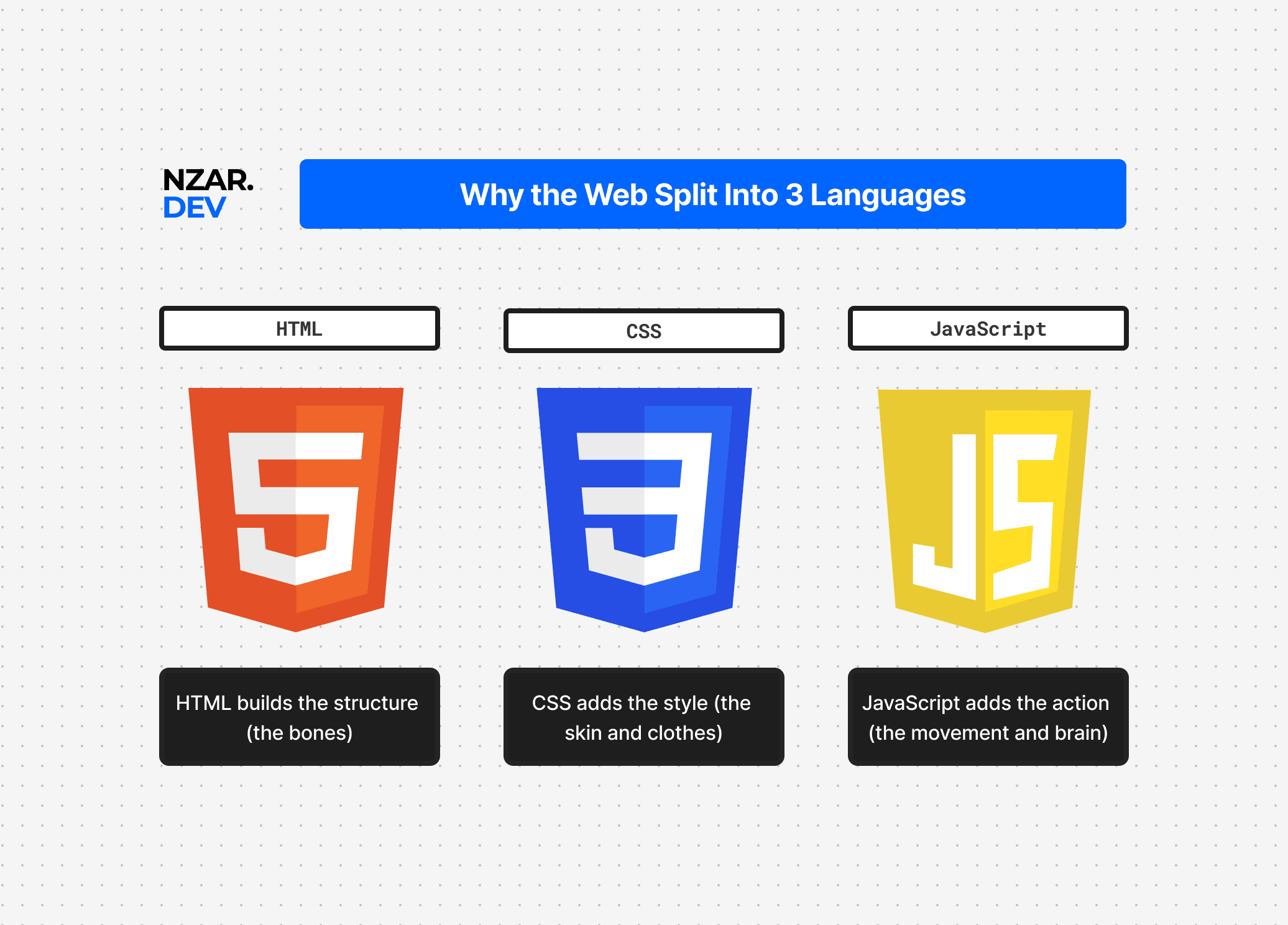
The web didn't actually start this way. In its earliest days, HTML did almost everything, structure and appearance were tangled together in the same tags, things like <font> and <center> littered right alongside the content itself. It worked, in the way anything tangled together "works," until you needed to change how a hundred pages looked, and had to go edit every single one of them individually.
CSS arrived specifically to pull styling out of that mess, and JavaScript arrived to handle behavior, what happens when you click something, separately again. This split has a name: separation of concerns, keeping structure, appearance, and behavior in three distinct layers instead of one tangled one. Change how your site looks, and you touch CSS, not your content. Add a new interactive feature, and you touch JavaScript, without needing to rewrite your page's structure at all.
Compare that to a single-language desktop app, where UI logic, appearance, and business logic often do end up tangled together in the same codebase, and changing how something looks can mean carefully picking apart code that also handles what it does. The web's three-language split isn't an accident or a historical inconvenience. It's a deliberate design that keeps each concern independent enough to change without breaking the other two. HTML is the first of those three layers, and it's what this entire part of the wiki is about.
Why Every HTML Document Looks the Same
Right-click almost any website and choose "View Page Source." No matter how different the sites look, the very top of the file looks nearly identical every single time. That's not a coincidence either. Browsers expect a specific skeleton at the top of every page, and getting it right removes an entire category of confusing, inconsistent behavior before it ever has a chance to happen.
Remember from the browsers article that the browser builds the DOM by parsing your HTML in order. A correct, predictable skeleton means the browser parses your page exactly the way you intended, every time, in every browser, without any guesswork involved.
The Document Type Declaration
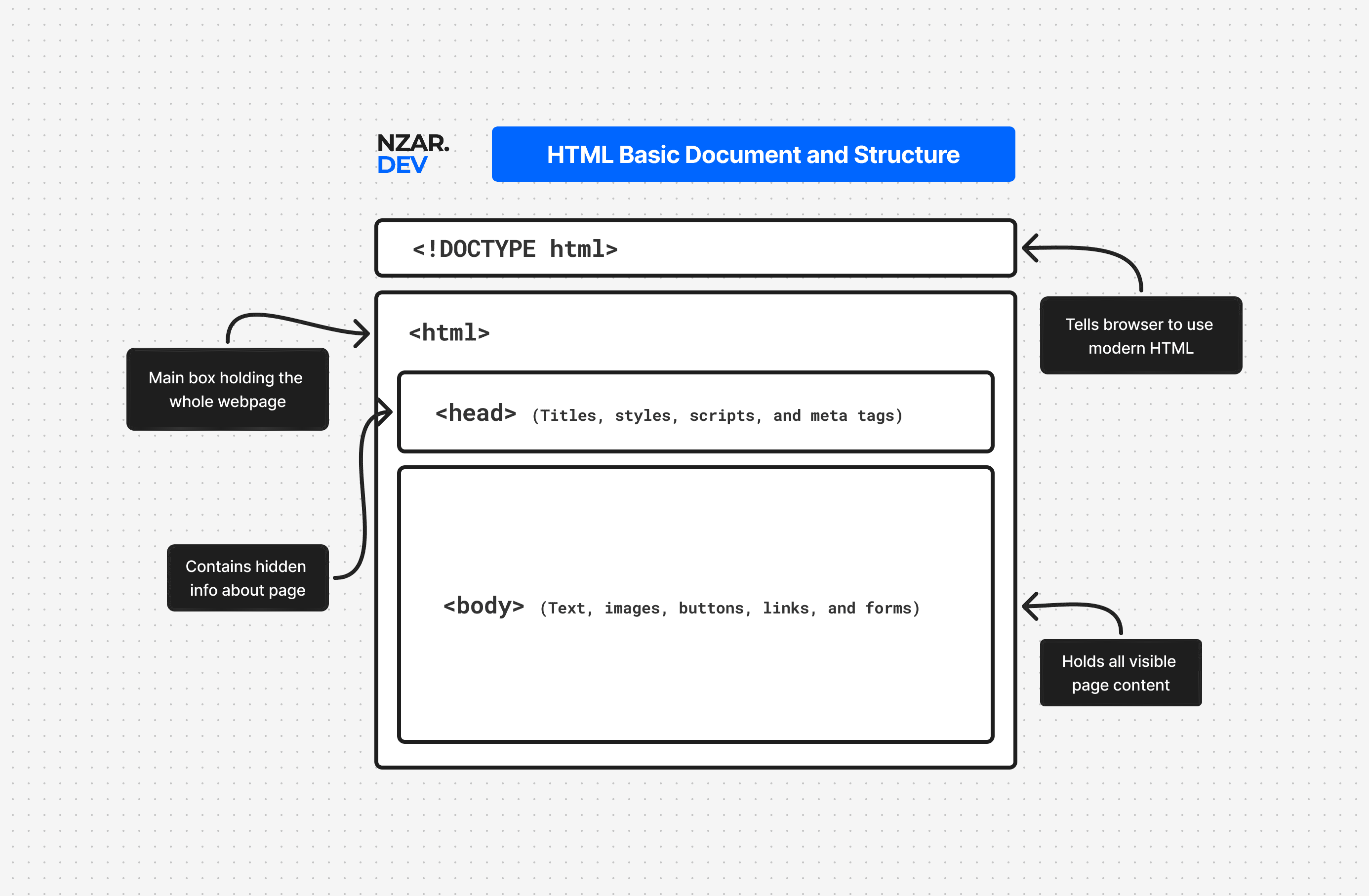
Every HTML page should start with this exact line, at the very top of the file:
<!DOCTYPE html>Think of it as a note to the browser that says: "Hey, use modern rules to show this page."
What happens if you leave it out? The browser doesn't know which rulebook to use, so it guesses. To avoid breaking really old websites, it falls back to quirks mode, a legacy compatibility mode that copies buggy browser behavior from the 1990s. Your CSS can behave inconsistently, spacing and sizing can shift in unexpected ways, and different browsers may render your page differently from each other.
What did pages look like before this line existed?
Back before <!DOCTYPE html> was standardized, developers had to write long, ugly declarations like this just to get modern rendering:
<!DOCTYPE html PUBLIC "-//W3C//DTD HTML 4.01//EN" "http://www.w3.org/TR/html4/strict.dtd">HTML5 simplified all of that down to one short, easy-to-remember line. Add it, and the browser uses standards mode, the modern, predictable, consistent rendering that this entire wiki assumes you're building with.
The <html> Element and Why lang Matters
Right after the doctype comes the root of the whole page:
<html lang="en">
  ...
</html>
Every other tag on your page lives inside this one element. It's the trunk of the entire DOM tree, the thing every branch, twig, and leaf grows out of. The lang attribute tells the browser, and anything reading the page on your behalf, what human language the content is written in.
This isn't just a formality. Screen readers use it to choose the correct pronunciation rules, and search engines use it to serve your page to the right audience. We'll cover both of these properly in the accessibility and SEO articles later in this part, but the habit starts right here, at the very top of the document.
lang is the one you'll use on almost every project, but a few others are worth knowing too.
dir tells the browser which way your text should flow. Most languages, like English, go left to right, so you rarely need to set this one by hand. But languages like Arabic go right to left, so you'd write dir="rtl" to flip the whole page around, including where the scrollbar sits and how some layouts behave.
<html lang="ar" dir="rtl"></html>Lastly, you can also attach your own custom data-* attributes to <html>, like data-theme="dark", so JavaScript can read them later. We'll cover exactly how these work when we get to the CSS part of this wiki.
<head> vs <body>: What Goes Where
Inside <html>, everything splits into exactly two sections, and mixing them up is one of the most common beginner mistakes.
The <head> holds information about the page, not the page's actual visible content. Think of it as the page's ID card: its title, its character encoding, links to stylesheets, metadata for search engines and social media. None of it appears directly on screen. The <body> holds everything that actually gets displayed, every heading, paragraph, image, and button a visitor will actually see and interact with.
A useful way to remember the split: if a person looking at the rendered page in their browser would never see it directly, it belongs in <head>. If they would, it belongs in <body>.
The Meta Tags Worth Knowing by Heart
Inside <head>, two meta tags matter enough to memorize outright.
<meta charset="UTF-8" />
<meta name="viewport" content="width=device-width, initial-scale=1.0" />
The charset tag tells the browser which character encoding to use when turning raw bytes into text, connecting directly back to the binary and text-encoding article from the Foundation chapter. UTF-8 is the standard choice almost everywhere today, and it's what lets your page correctly display everything from plain English letters to emoji and non-English scripts.
The viewport tag is what actually makes a page behave properly on a phone. Before including it, a phone would render your page at a fixed desktop width, then shrink the whole thing down to fit the screen, leaving everything tiny and requiring the visitor to pinch and zoom just to read a sentence. After including it, the page is told to match the device's actual screen width and start at a normal, readable zoom level. This single line is the difference between a page that looks intentionally mobile-friendly and one that just looks broken on a phone. MDN's HTML documentation keeps a full, current list of every meta tag worth knowing, if you ever need more than these two.
The Body: Where Your Actual Content Lives
Everything visitors interact with goes inside <body>, headings, paragraphs, images, links, forms, all of it. This is the part of the document the next article in this part digs into properly, covering every tag actually worth knowing and when to reach for each one.
Putting the Whole Skeleton Together
Here's the complete minimal structure every HTML page should start from:
<!DOCTYPE html>
<html lang="en">
  <head>
    <meta charset="UTF-8" />
    <meta name="viewport" content="width=device-width, initial-scale=1.0" />
    <title>My Page</title>
  </head>
  <body>
    <h1>Hello, World</h1>
  </body>
</html>
Every single page you build for the rest of this wiki, and for the rest of your career, starts from some version of exactly this. Everything else, every tag, every attribute, every framework built on top of HTML, gets added inside this same, unchanging skeleton.
Quick Reference Cheat Sheet
A short list worth bookmarking, for whenever you need a fast refresher:
<!DOCTYPE html>-> declares standards mode, always the very first line.<html lang="...">-> the root element, holding the page's language.<head>-> information about the page, nothing visibly rendered.<meta charset="UTF-8" />-> sets the page's text encoding.<meta name="viewport" content="width=device-width, initial-scale=1.0" />-> makes the page behave correctly on mobile.<title>-> the text shown in the browser tab and search results.<body>-> everything a visitor actually sees and interacts with.
Why This Matters
A missing viewport tag is exactly why a page can look perfect on your laptop and completely broken on your phone. A missing lang attribute is exactly why a screen reader might mispronounce your entire page. A missing doctype is exactly the kind of thing that quietly causes a layout to render slightly differently across different browsers, for no reason that shows up anywhere in your actual code.
None of these are bugs you'd catch by staring at your CSS or JavaScript. They live right here, in the structure most people write once, copy forever, and never actually think about again. Get this skeleton right from the start, and you remove an entire category of confusing, hard-to-trace problems before they ever have a chance to show up.